UbuntuHelp:UbuntuEyeCandy
来自Ubuntu中文
 |
点击翻译: |
English |
请不要直接编辑翻译本页,本页将定期与来源同步。 |
<<Include(Tag/StyleCleanup)>> There are many ways to customize Ubuntu to look cooler. Note a great guide for desktop theming and desktop effects is available at http://linux.host22.com/1_13_Theming.html If you've got any cool additions, add any fairly short items to this page, and add longer items to their own pages with links from here.
目录
Fonts
This is a placeholder article. There needs to be some information on how to fix the horrible fonts that sometimes show up after a system upgrade. To easily install M$ fonts and others, consider using the repository. For fonts that are commonly distributed on Windows computers, install the package msttcorefonts using Synaptic or apt-get. For more fonts, browse Synaptic's packages, scrolling down to the packages beginning with ttf-. The repositories, however, do not list every single font. If one is trying to install a non-free font, one must manually transfer the font from a computer that already has the font installed. On Windows PC's, fonts are normally placed in C:/WINDOWS/FONTS. Simply drag-and-drop the font onto a removable media. (Note: not every font can be transferred this way. Fonts with the extension ".ttf" -- which is most of them -- can be dragged over. Other fonts must be converted, a process which is not explained here.) From the Ubuntu side, fonts can be placed in a number of directories, which are defined in /etc/fonts/fonts.conf
- /home/<username>/.fonts (where <username> is replaced with one's username) allows the user to install a font for oneself. Fonts placed here are only accessible for the user whose directory it is. This is useful for one-user systems where there is a separate /home partition on the hard disk, as fonts installed here are not wiped out during a reinstall.
- /usr/share/fonts
- /usr/local/share/fonts
After installing/uninstalling fonts manually, always run "sudo fc-cache -f -v" (without quotes) in a terminal to tell the computer to look for new fonts. For more information, please consult https://wiki.ubuntu.com/Fonts
Wallpaper
To change wallpaper, right-click on your desktop and choose Change Desktop Background. Pick a wallpaper from the list or choose the Add Wallpaper button to add an image file to the list. https://help.ubuntu.com/community/UbuntuEyeCandy?action=AttachFile&do=get&target=Screenshot-Appearance_20Preferences-small.png Use the Desktop Colors selector to change the background behind translucent or semi-transparent images - this works very well with SVG graphics.
Desktop Themes
Ubuntu has many themes, and many more can be downloaded from websites. To change themes on Ubuntu 7.10 and 8.04 LTS:
- Click System → Preferences → Appearance.
On older versions of Ubuntu:
- Click System → Preferences → Theme
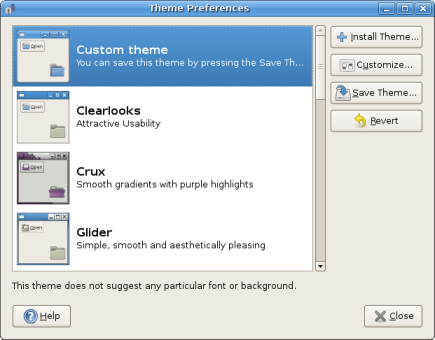 Drag downloaded theme files onto the Theme Manager to make them appear in the list.
Themes can have:
Drag downloaded theme files onto the Theme Manager to make them appear in the list.
Themes can have:
- Controls - sometimes called GTK Themes
- Window Borders - sometimes called Metacity Themes
- Icons.
Most themes include all of these items, some have only one - you can find those by clicking the Customize or Theme Details button. Here you can also mix and match elements from different themes.
Mouse Cursor Themes
Recent editions of Ubuntu include mouse cursors with Desktop Themes, and new cursor themes can be installed in the same manner (see above). To switch between installed mouse cursor themes:
- Click System → Preferences → Appearance.
- Select the Theme tab if not already selected.
- Click Customise.
- Select the Pointer tab.
https://help.ubuntu.com/community/UbuntuEyeCandy?action=AttachFile&do=get&target=Screenshot-Customise_20Theme-small.png For older versions of Ubuntu:
- Download the theme to an easily accessible location; ~/Desktop is good.
- Install the
gcursorpackage via Synaptic Package Manager or apt-get. - Start gcursor with System → Preferences → Cursor Selection.
- Select a theme, or click 'Install theme' and select the compressed file to add it.
- Once you're finished, select the theme you want to use and click "Close"
Translucent Panels
The panels at the top and/or bottom of the screen (containing the GNOME menu, for example) can be set to be translucent, or have an image as a background:
- Right-click the panel.
- Select Properties.
- Select the Background tab.
- For a translucent panel, select Solid Colour, then move the Style slider to set opacity.
- For a background image, select Background image, then browse to find the desired image.
https://help.ubuntu.com/community/UbuntuEyeCandy?action=AttachFile&do=get&target=Screenshot-Panel_20Properties-small.png The login window is also sometimes called the Gnome Display Manager, or GDM.
- Click System → Administration → Login Window.
To install new login screen themes, save the .tar.gz with your theme on it to the directory of your choice. In the Login Screen program, press the Install New Theme button, find your new theme's file, and press the Install button. Then simply select the new theme from the list of available themes. You can also set it up to pick a random theme on every boot, rather than picking just one theme.
Changing the Gnome Splash Screen
- Install
gnome-splashscreen-manager. Start it by selecting System → Preferences → Splash Screen. - Install new splash screens with the 'Install' button by navigating to the file you want to use for your splash.
Changing the Grub Splash Screen
Ubuntu 8.04 and 7.10:
- The Grub Splash Screen is an image that is displayed as a background when you're selecting which OS to boot - by default, there is none. If you want to set an image/change an existing one, visit the Grub How To page.
Changing the Colored Background Splash Screen
Originally a brownish color to match the Ubuntu theme, it does not quite fit with other themes and might want to be changed. Enter the gdm.conf file (sudo gedit /etc/gdm/gdm.conf). About two-thirds of the way down you will see the lines: BackgroundColor=#dab082 GraphicalThemedColor=#dab082 Change it to what you like. For all black, use: BackgroundColor=#000000 GraphicalThemedColor=#000000
Getting Regular Art Updates
Gnome Art Manager
Gnome Art provides an easy way to fetch backgrounds, themes, login screen art, and more from art.gnome.org. Just install gnome-art. See Installing Software, and click System → Preferences → Art Manager. Use the Art menu to select the category you wish to view.
Ubuntu Eyecandy Pages
- Qt-Gnome: Make KDE applications look the same as Gnome apps.
- Compiz - Provides smooth, 3D animated window movement, desktop switching, 'expose' like application switching, transparent terminals, and more, including simple graphical configuration tools.
- GnomeDo: A "Quicksilver"-style launch window.
- GnomeLaunchBox: Another "Quicksilver"-style launch window.
- WallpaperTray: Picks a particular wallpaper each time you log in, or regularly.
- CairoDock - A dock program similar to that on OSX.
- AvantWindowNavigator - A dock program similar to that on OSX.
- KSmoothDock: Zooming toolbar alternative or complement for KDE's Kicker.
- SimplyStunningLinuxDesktop: An example of a good looking Desktop.
- Ubuntu Forums: Desktop Effects & Customization
Other Theme & Eyecandy Resources
- Gnome Hacks, a site for various Gnome tweaks
- Ubuntu Artwork
- Gnome Art
- Gnome Look, a popular Gnome theme and desktop art site


